How to Remove Background from Photos Online — Free 60-Second Guide

Removing the background from an image used to mean opening Photoshop, tracing edges with the pen tool, and spending 20 minutes on a single photo. Today, an AI-powered tool can do the same job in about a second. Here is how to do it with Clearpic — for free, without an account.
Step 1: Upload your image
Open clearpic.online. Drag your PNG, JPG, or WEBP file (up to 15 MB) into the upload zone, or click to browse. There is no signup step — the tool starts working immediately.
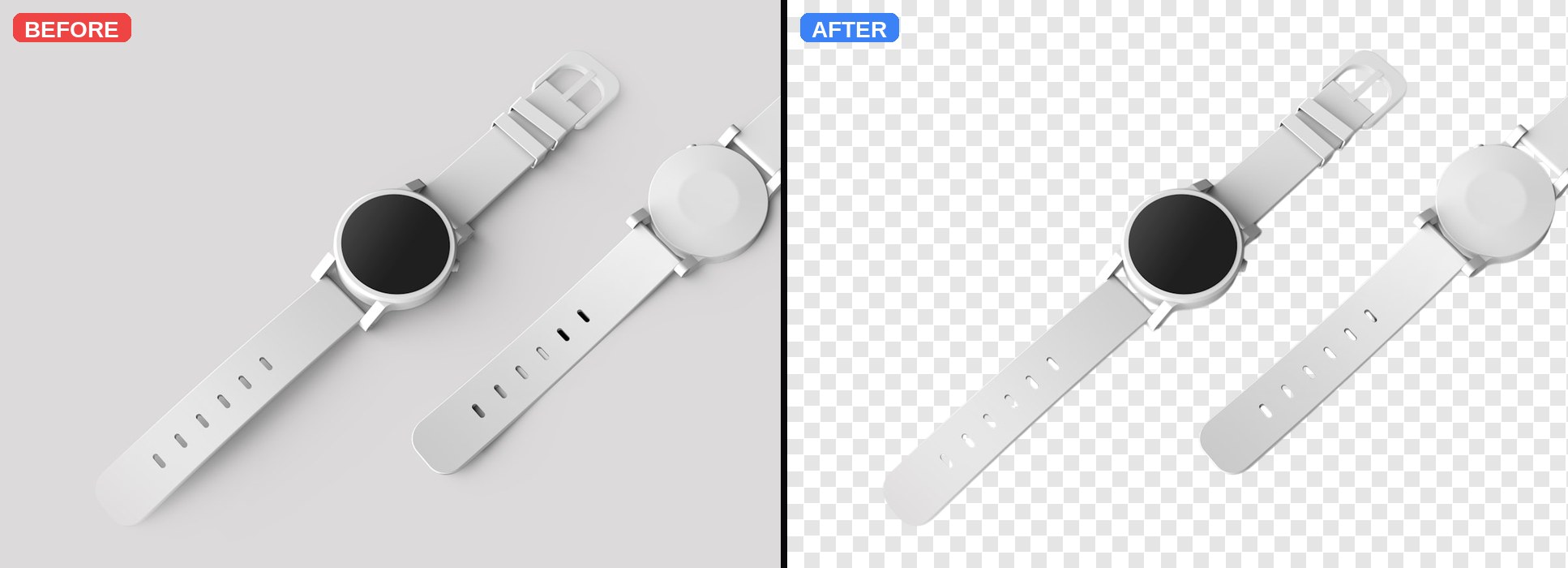
Step 2: Let the AI do the heavy lifting
Clearpic runs your image through a premium segmentation model that separates the subject from the background pixel-by-pixel. The result: a transparent PNG with clean edges, no black outlines, no color fringes. For most photos, this takes about a second.
Step 3: Add a new background (optional)
In the sidebar, choose a solid color, a preset gradient, or upload your own background photo. The composite updates instantly — no need to re-upload.
Step 4: Fine-tune with the manual editor
Complex images (group photos, fine hair, transparent objects) can leave small imperfections. Click Edit on the result screen to open the brush tool. Use Erase to remove any leftover background pieces, or Restore to paint back parts of the subject the AI missed. Undo any time.
Step 5: Download your transparent PNG
Click Download. You now have a full-resolution PNG ready for social media, product listings, thumbnails, e-commerce catalogs, wedding invitations — anywhere you need a subject on any background.
Tips for the cleanest result
1) Use a well-lit photo — soft shadows blur edges. 2) Higher contrast between subject and background = sharper cutout. 3) For group shots, the Restore brush is your friend — the AI sometimes drops a small child or a flowing saree bottom that you can easily paint back.
Try Clearpic now — free, no signup
Upload any photo and get a clean, background-free PNG in about a second.
Remove a background